


%20(1).png)
Educators want every student to succeed, but out of the hundreds of students you see every day, how can you know what each of them needs without digging through mountains of data? We built Mastery Tracker as part of Aware, our data management system, so you can see all of the relevant data for the students you monitor in one place. No more juggling spreadsheet tabs. No more shuffling through papers in PLC. With Mastery Tracker, you can take detailed notes on student progress and assess their performance with several data views. Plus, it can automatically update with every test they take, making it easy to adjust your interventions and enrichment to the student’s most current learning needs.
Here’s how Mastery Tracker makes data accessible and actionable:
- Mastery Tracker aggregates data from multiple sources and groups it according to the different analytical lenses you might want to adopt.
- Trackers move with a student to their next teacher, so each teacher can use previous insights to individualize their instruction to the student.
- You no longer have to rely solely on composite assessment grades to accurately represent a student’s knowledge.
- Focus standards can be customized to tailor each view to the critical content for your district.
- PLC groups can easily use the tracker’s data views to actively adjust curriculum, tailoring their reteaching and intervention based on the gaps they identify in the student’s mastery.
- Instructional coaches have early visibility into student progress to evaluate the effectiveness of curriculum and instructional strategies, allowing them to make adjustments early on rather than at the end of the school year.
- Administrators can take a non-evaluative view into a teacher’s monitoring of a student, allowing them to offer insight or resources for even more effective student support.
Use Data Views in Mastery Tracker to Analyze Student Mastery Through Multiple Lenses
Student progress data takes many forms. Do you want to see whether they’ve improved on an important standard between tests? Do you want to see how individual students are performing on your focus standards? Or, do you want to be able to identify a student’s achievement level at a glance before your one-on-one meeting with them? We have a data view for every conversation, intervention, and tracking need in the Mastery Tracker.
Student Summary View
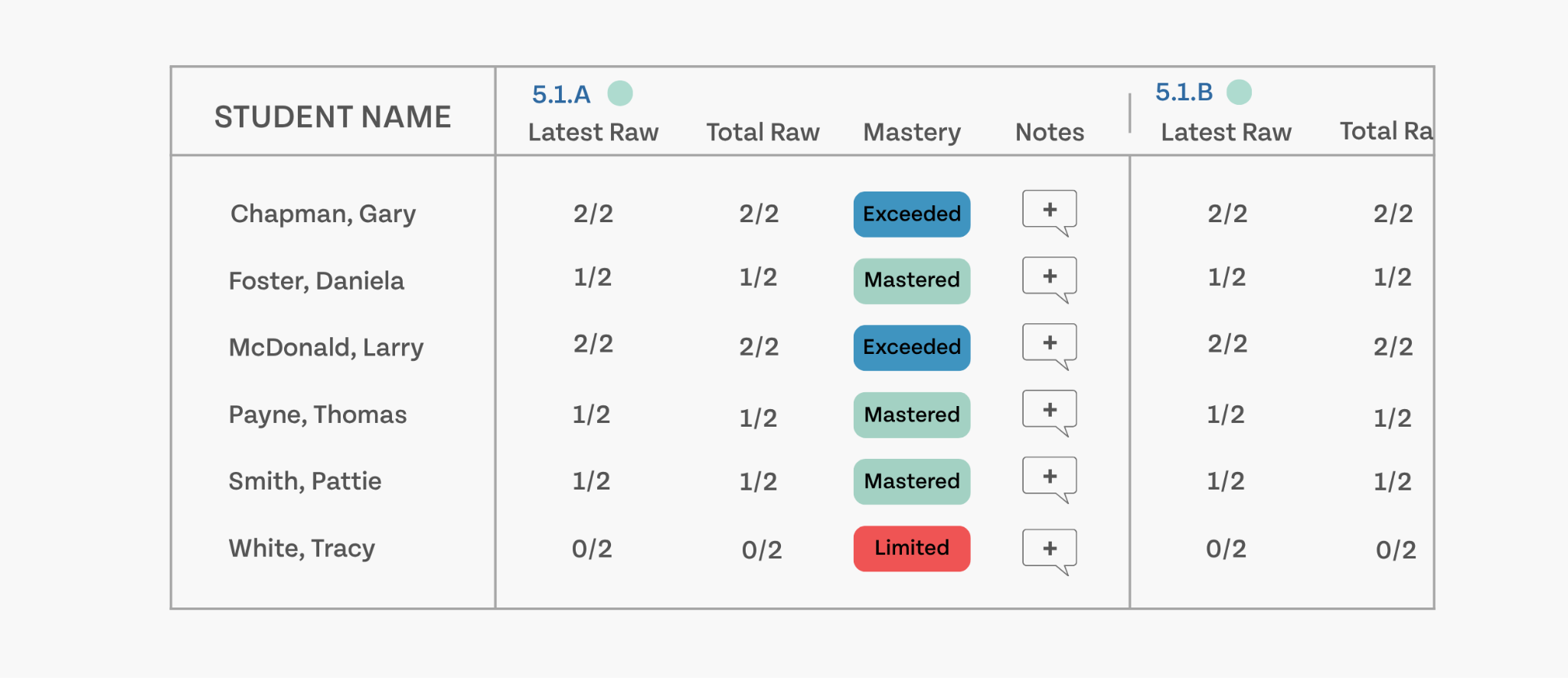
In the Student Summary View, all students in the tracker will populate with their mastery levels in the standards. Teachers can set “Focus Standards,” making it easier to track progress in the standards that are most important to each group’s growth.
Student View
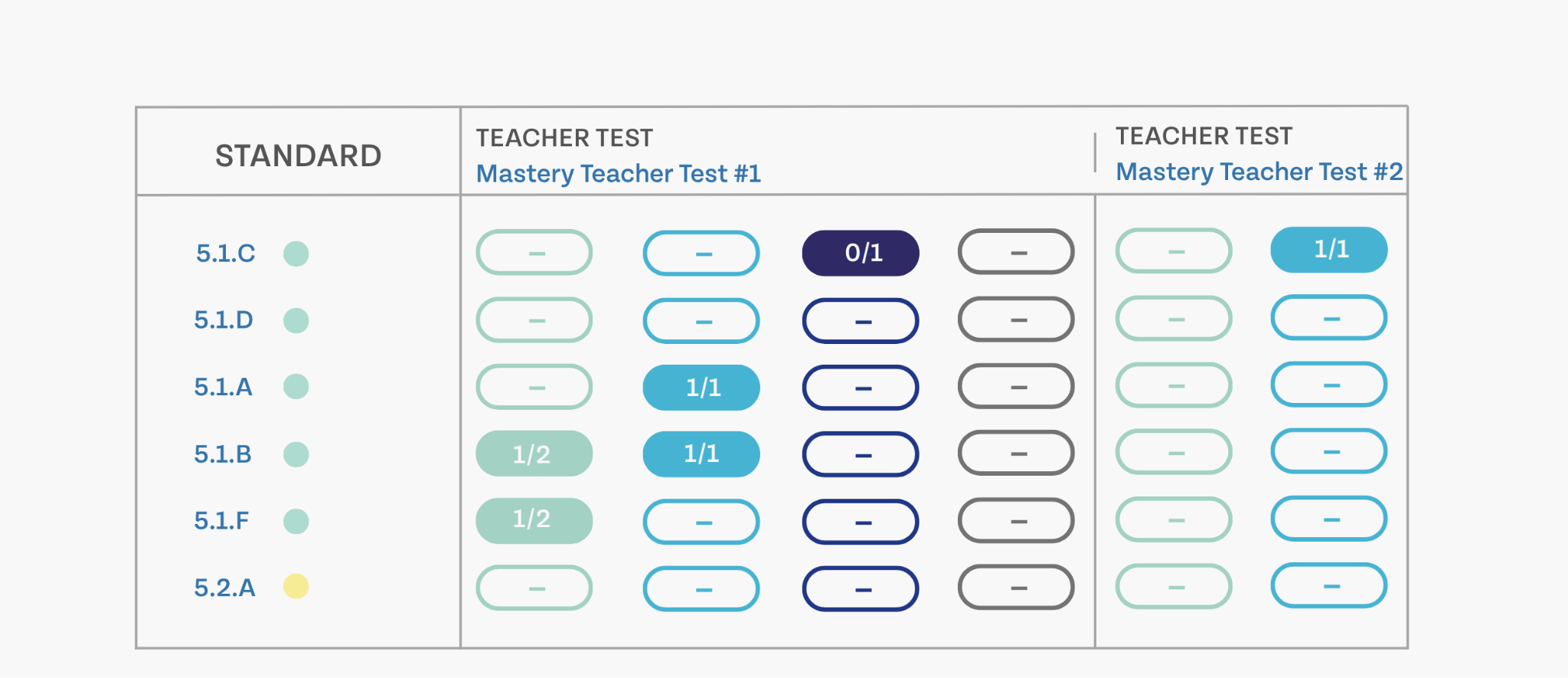
Teachers can access the student view by selecting a student’s name. This view shows the student’s performance per standard on each assessment. The standards are color-coded per level of depth-of-knowledge, making it easier to identify the student’s current DOK. The user can use filters to narrow down the standards by different types of skills, such as “readiness skill” or “supporting skill.”
Standard View
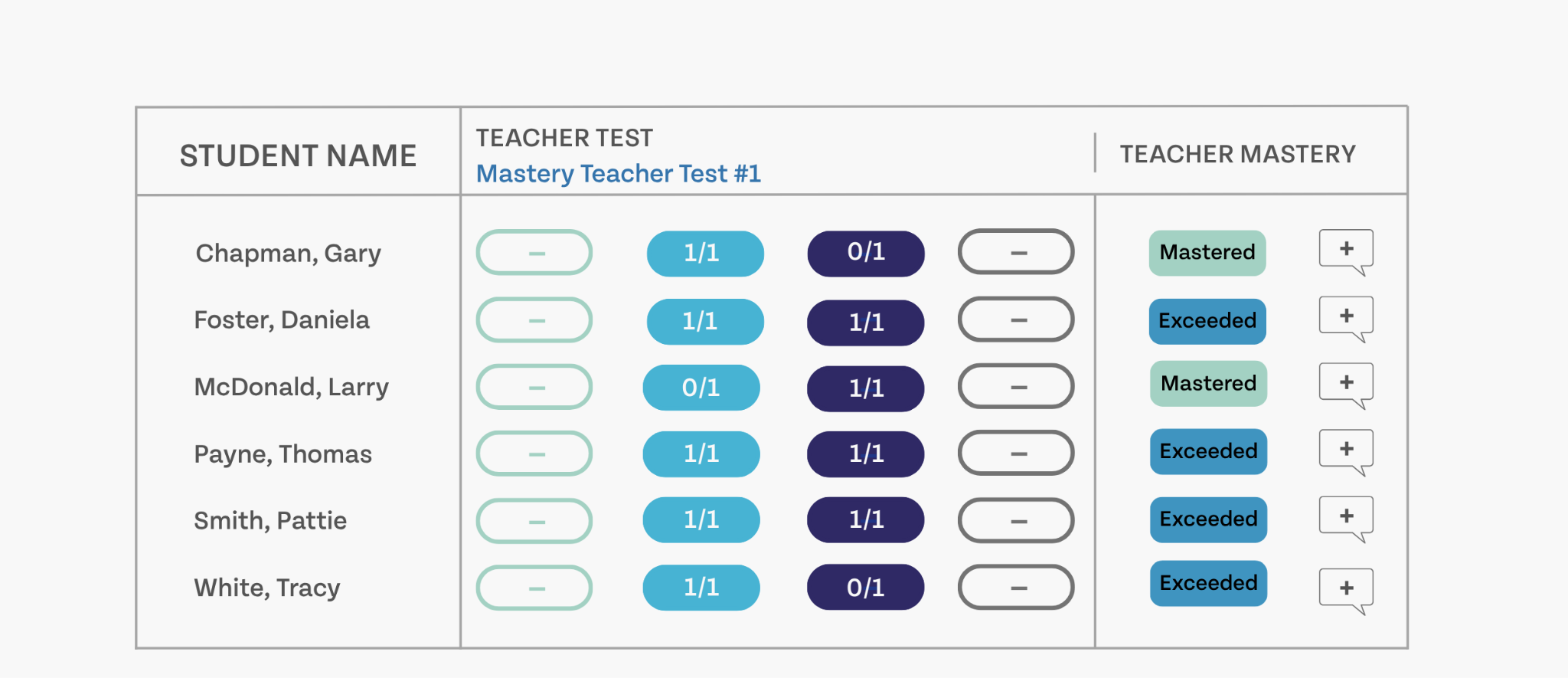
The standard view shows the performance of every student in the tracker on one standard. This view allows the user to see which assessments tested this standard, but it can also be useful to quickly assess progress in the standards you’re focusing on during intervention.
Assessment View
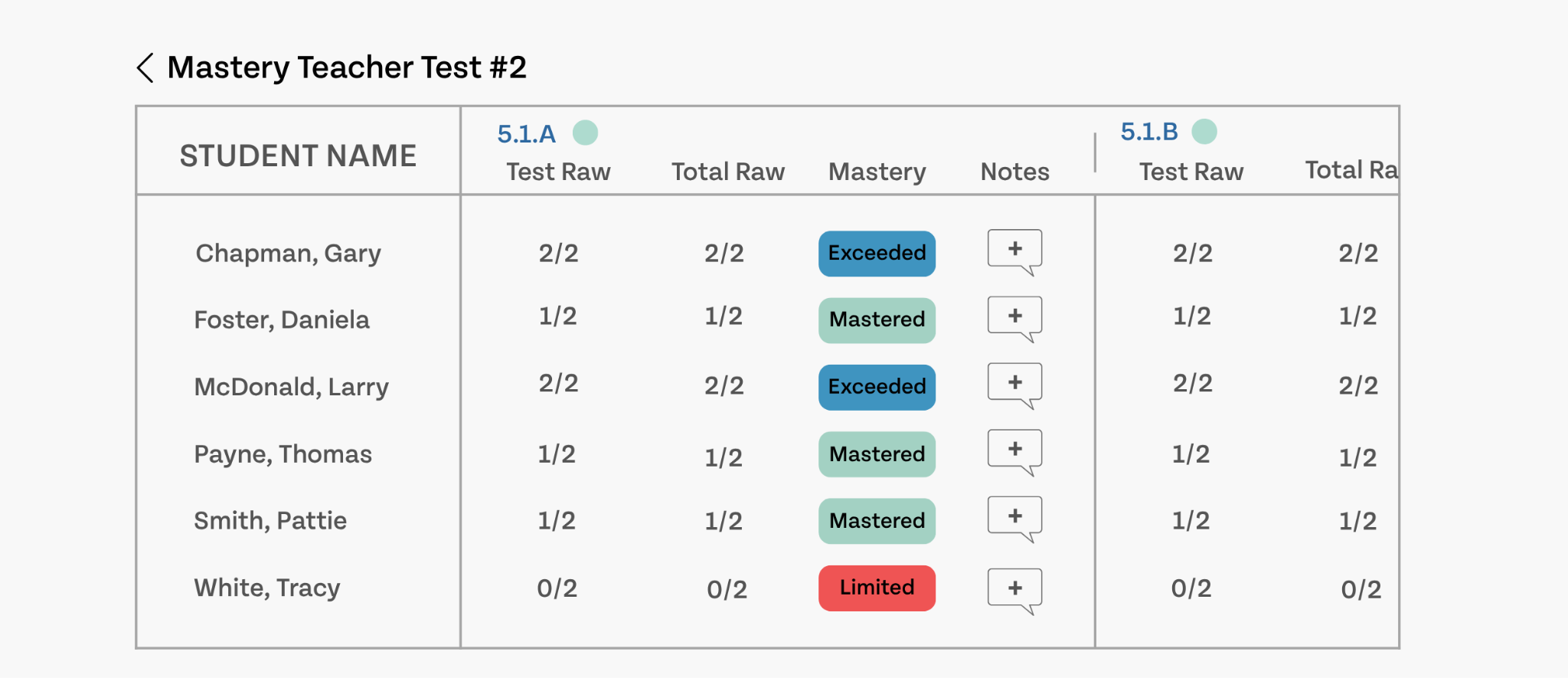
In the assessment view, quickly analyze student performance per standard. These mastery levels can be auto-calculated but can also be overridden if the teacher believes the student’s mastery level to be higher or lower than the assessment indicates.
Mastery Overview
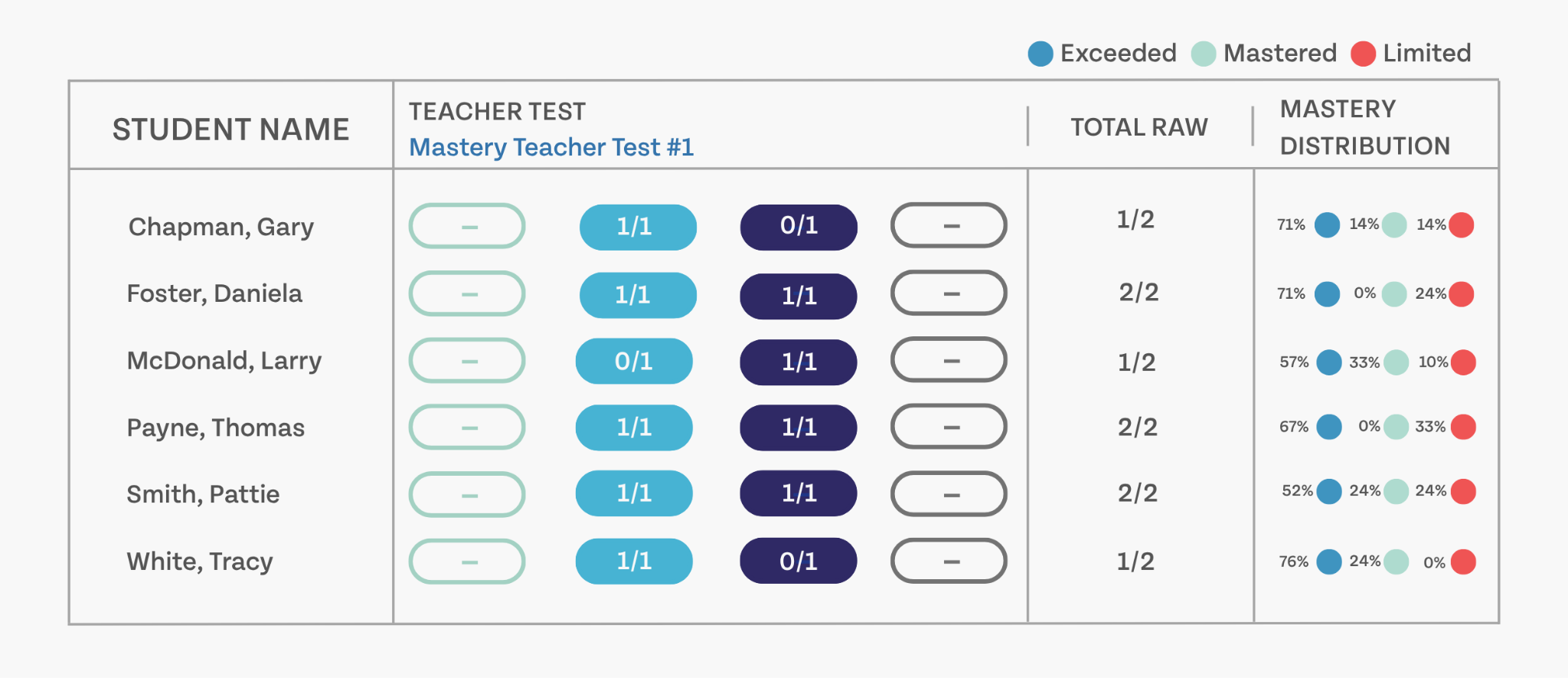
The Mastery Overview is the most robust view, showing all tested standards for each assessment in the tracker, as well as other insights, such as the mastery distribution, which shows the percentage of students at each mastery level for each standard.
Tool Tips:
- Teachers can combine assessment data with their observations of the student, allowing them to honor each student’s learning style and unique methods of demonstrating mastery.
- While Mastery Trackers can be created for an entire class, they are most effective when tracking progress for “monitor groups,” which can be created in Aware. Monitor groups can share common learning gaps and misconceptions, making it easier to assess growth and keep the tracker up to date.
- Mastery Levels can be modified at the district level, allowing schools to measure progress against local performance goals and expectations.
- Teachers and administrators should work together to discuss what each mastery level looks like, so that this data is trustworthy and reliable across classrooms.
What our districts have to say about Mastery Tracker
“The Mastery Tracker has been a game-changer for us because it allows our teachers to pinpoint student needs by standard and does so with just a few clicks of a button, allowing instructions to rapidly tailor instruction to meet student needs. One of the most impactful outcomes has been the positive shift in student-teacher relationships. Teachers are now equipped with real-time data that empowers them to engage with students more effectively, addressing learning gaps before they become bigger issues. This proactive approach has not only improved academic outcomes but also contributed to an improved culture in our professional learning communities and Aware is our primary engine for building a tighter bond between instructional leaders and teachers.”
- Chris Julian, Carrollton-Farmers Branch ISD
Want to learn more about how Mastery Tracker supports student growth initiatives? Check out these resources.
The 7 Steps of Assessment Program Analysis (Article)
By Student, By Standard: How Mastery Tracker Transforms Data Practices (Webinar)
Mastering the Art of Student Mastery (Webinar)
Student Monitoring: Tracking Mastery of Student Learning (Webinar)
Ready to talk to our team about what Aware can do for your district?
We don’t like to go into a demo blind. We want to know what your data needs and growth initiatives are, so we can talk about exactly how Aware solves your problems. Hit the demo button at the bottom of the screen to connect with our team and get your personalized demonstration.




%20(1).png)
%202.png)
.png)